Parameters
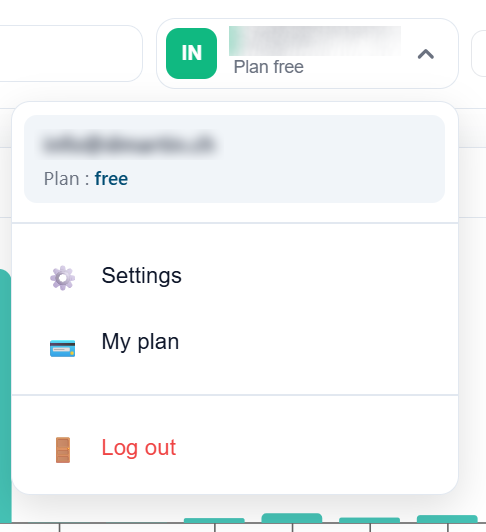
Customize your MyTwin experience and configure your account settings according to your needs. Manage your notification preferences, language, and advanced scan options.
Description for illustration: Screenshot showing the parameters interface with left sidebar menu (General, Notifications, Privacy, Advanced) and main panel displaying configuration options.
Parameters Overview
MyTwin parameters allow you to finely control your user experience and adapt the platform to your specific needs. Whether you're an individual user or a professional managing multiple identities, you'll find all the necessary settings here.
General Settings
Language and Region
Configure your MyTwin interface language and time zone.
Available options:
- Interface Language: English, Français, Español, Deutsch
- Date Format: DD/MM/YYYY or MM/DD/YYYY
- Time Zone: Automatic detection or manual selection
Description for illustration: Language selection interface with flags and dropdown list of available languages.
Display
Customize the appearance of your dashboard.
- Theme: Light, Dark, or Automatic (follows system settings)
- Display Density: Compact, Normal, or Comfortable
- Dashboard Widgets: Enable or disable specific widgets
Notifications and Alerts
Stay informed about important events regarding your digital footprint without being overwhelmed by notifications.
Email Notifications
Critical Alerts (always active):
- New data breach detected
- Compromised password identified
- Suspicious activity on your MyTwin account
Important Alerts (customizable):
- New signals detected
- Weekly security score report
- Priority improvement recommendations
Information (optional):
- Monthly MyTwin newsletter
- New features announcement
- Cybersecurity news
Description for illustration: Notifications panel with on/off switches for each alert category, organized by priority level with color coding (red for critical, orange for important, blue for info).
In-App Notifications
Manage notifications that appear directly in the MyTwin application:
- Notification badge on icon
- Pop-ups for critical alerts
- Silent notifications for information
Report Frequency
Choose how often you receive summary reports:
- Daily: Report every morning (Advanced users only)
- Weekly: Summary every Monday
- Monthly: Detailed report on the 1st of each month
- Event-only: Notifications only when new discoveries occur
Scan Preferences
Configure automatic scan behavior and define priority data sources.
Automatic Scan Frequency
MyTwin can automatically scan your digital footprint at regular intervals.
- Manual scan only
- 1 scan per month
- Weekly automatic scan
- Unlimited manual scans
- Daily automatic scan
- Real-time monitoring
- Unlimited manual scans
Description for illustration: Table with 3 columns (Free, Light, Advanced) visually showing different scan frequencies with calendar icons.
Data Sources
Select which database types MyTwin should prioritize:
- Public data breaches
- Dark web forums and marketplaces
- Social networks and public platforms
- Compromised password databases
- WHOIS and DNS records
Recommendation
For optimal protection, we recommend enabling all sources. This ensures comprehensive coverage of your digital footprint.
Analysis Depth
Define the level of scan detail:
- Quick: Main sources only (5-10 minutes)
- Standard: Balanced analysis (15-30 minutes)
- Deep: Exhaustive scan of all sources (1-2 hours) - Advanced only
Privacy and Data
Personal Data Management
MyTwin respects your privacy. Control precisely what data is collected and stored.
Scan Data:
- Result Retention: 6 months, 1 year, 2 years, or unlimited
- Scan History: Show or hide complete history
- Anonymization: Option to anonymize certain sensitive data in the interface
Data Sharing:
- Allow anonymized statistics to improve the service
- Participate in cybersecurity research program (aggregated data)
Description for illustration: Clean interface with accordion sections for each privacy aspect, with plain text explanations and toggles.
Data Export
In compliance with GDPR, you can export all your data at any time.
Available formats:
- JSON: Structured format for technical analysis
- CSV: Compatible with Excel and analysis tools
- PDF: Formatted and readable report
- Complete Archive: All your documents and results
Account Deletion
You have the right to delete your account and all associated data at any time.
Warning
Account deletion is final and irreversible. All your data will be deleted within 30 days.
Advanced Settings
These options are intended for experienced users and professionals.
API and Integrations
Advanced Plan only
- API Key: Generate a key to integrate MyTwin into your tools
- Webhooks: Receive real-time notifications on your systems
- SSO: Single Sign-On configuration (enterprise)
Description for illustration: Panel showing a field with generated API key, "Generate new key" and "Copy" buttons, plus links to API documentation.
Expert Mode
Enable advanced features:
- Detailed Technical View: Display raw JSON data
- Scan Logs: View detailed logs of each scan
- Penetration Testing: Enable more aggressive scans (at your own risk)
Multi-Account Management
For professionals and consultants:
- Manage multiple profiles from a single account
- Unified dashboard for all your clients
- Automated reporting for each profile
Account Security
Two-Factor Authentication (2FA)
Protect your MyTwin account with an additional layer of security.
Available methods:
- Authentication App (recommended): Google Authenticator, Authy, 1Password
- SMS: Code sent by text message
- Physical Security Key: YubiKey, Titan Security Key
Security Recommendation
Always enable 2FA on your MyTwin account. It's the most effective protection against unauthorized access.
Description for illustration: Infographic showing 3 steps: 1) Scan QR code 2) Enter verification code 3) Save backup codes. Modern design with numbers in circles.
Active Sessions
View and manage all sessions connected to your account:
- Device used
- Location (city, country)
- Last activity date
- Remote logout option
Recovery Codes
In case of lost access to your 2FA method, use a single-use recovery code.
- Generation: 10 codes automatically created when 2FA is enabled
- Usage: Each code can only be used once
- Renewal: Generate new codes at any time
Help and Support
Activity Logs
View the complete history of actions performed on your account:
- Logins and logouts
- Scans launched
- Settings changes
- Data exports
Diagnostics
In case of problems, use the built-in diagnostic tool:
- Connectivity test
- API access verification
- MyTwin system status
- Automatic bug report submission
Description for illustration: Diagnostic dashboard with status indicators (green/red) for each service (API, Database, Scan Engine, etc.), like a "status page".
Recommended Default Settings
Here's our recommended configuration for optimal MyTwin usage:
| Parameter | Recommended Value | Reason |
|---|---|---|
| Critical Notifications | Enabled | Maximum security |
| Automatic Scan | Weekly minimum | Proactive detection |
| Data Sources | All enabled | Complete coverage |
| 2FA | Enabled (App) | Account protection |
| Automatic Export | Monthly | Data backup |
| Scan Depth | Standard | Time/quality balance |
Frequently Asked Questions
Can I change my settings at any time?
Yes, all your settings can be modified at any time from this page. Changes are applied immediately.
Do my settings affect my subscription?
Some advanced features are limited by your subscription plan. See the Billing & Plans page for more details.
How do I reset my settings?
A "Restore Default Values" button is available at the bottom of each settings section.
What happens if I disable critical notifications?
Critical notifications cannot be completely disabled to ensure your security. However, you can choose to receive them by email only.
Going Further
- Profile: Manage your personal information and monitored emails
- Security: Understand MyTwin's security measures
- GDPR & Privacy: Your rights and our commitments
- FAQ: Answers to the most common questions
Need help with your settings? Contact our support team at support@getmytwin.io